


Copied from https://www.ceos3c.com/2017/07/06/configure-ntp-server-windows-server-2016/
We will use PowerShell to change the NTP Server and we will validate if it worked afterwards.
Configure the NTP Server on Windows Server 2016
On your Windows Server 2016 hit the Windows Button and type: PowerShell and right-click it and select Run as Administrator
Type the following commands
w32tm /config /manualpeerlist:pool.ntp.org /syncfromflags:MANUAL
Stop-Service w32time
Start-Service w32time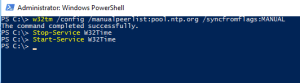
Of course, you can take any NTP Server that you want.
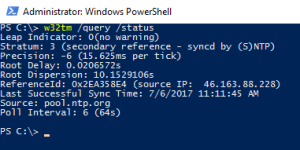
Now verify if the time-server was set correctly on your Server 2016 by typing:
w32tm /query /statusYou should get a reply like this:
Now we will go ahead and verify if our clients sync properly.
Verifying if the Time Server was correctly set on our Clients
On a client computer open a PowerShell with right-click and Run as Administrator….
Type:
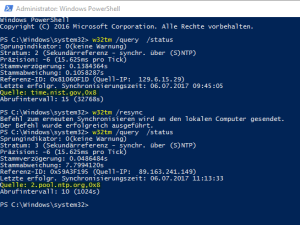
w32tm /query /statusCheck the time-server and type:
w32tm /resync
w32tm /query /statusThen you are able to see that the time-server actually changed like in the example below.
And that’s it! Easy, right?
Always make sure that you use the same time-server in your network and that all your clients are syncing from it. If you have time differences inside of your Active Directory Domain you will run into major issues.